


Ticket Tagging: Best Practices for Better Customer Support
-
by Jennifer Akinyi Odhiambo
- Updated on: July 29, 2026

TL;DR: Ticket tagging helps support teams organize, prioritize, and manage customer requests more efficiently. By applying clear, standardized tags, teams can improve searchability, streamline workflows, accelerate ticket triage, uncover recurring trends, and deliver faster customer support.
Managing hundreds of customer requests becomes difficult without a consistent way to organize support tickets. Important issues can be delayed, assigned to the wrong team, or overlooked entirely.
Ticket tagging helps support teams classify, prioritize, and track customer requests using simple labels.
Whether applied manually or automatically, ticket tags make it easier to organize tickets, automate workflows, filter related requests, and identify recurring issues.
Ticket tagging also supports effective ticket triage by providing agents with the information needed to assess requests and direct them to the appropriate team.
In this guide, you’ll learn what ticket tagging is, how it works, common use cases, examples of ticket tags, best practices, and the benefits of implementing an effective tagging strategy.
What is ticket tagging?
Ticket tagging is the process of assigning labels or tags to support tickets to help categorize customer requests and make them easier to manage.
Different businesses can tag tickets based on criteria such as type, priority level, department, or other relevant attributes.
By adding relevant tags to tickets, support teams can more easily organize requests, improve searchability, track recurring issues, and manage support operations more efficiently.
How does ticket tagging work?
Ticket tagging works by assigning one or more labels to a support ticket based on what the request is about, such as the issue type, urgency, customer segment, or product area.
When a ticket is created, agents can add tags manually, or automation rules can apply them automatically based on predefined conditions like keywords, form selections, or customer type.
Example:
Ticket: “I can’t access my account after resetting my password.”
Tags: Account-access, login-issue, priority-high
These tags help support teams quickly filter and categorize requests, automate ticket routing, prioritize urgent issues, and identify recurring customer problems over time.
Organize Customer Support Tickets More Efficiently
An all-in-one Help desk with a one-page ticketing interface to help you execute your support operations in a jiffy. Sounds interesting?
What information do ticket tags capture?
Ticket tags convey different types of information that help support agents manage customer service problems as quickly and smoothly as possible. This includes:
Status updates
Status tags indicate where a ticket is in the support process, such as new, open, pending, on hold, solved, or closed.
Agents can quickly identify which tickets require action and which are awaiting a customer response.
Product or service area
Some companies may offer more than one product or service. In such cases, it is beneficial to use tags to identify a product or service particular ticket relates to.
For instance, a ticket tag that indicates an issue is associated with a website or mobile application may be sent to the IT customer support team for quick resolution.
Issue category
Issue category tags identify the specific type of problem a customer is experiencing.
In a help desk ticketing system, it provides information necessary for organizing all the tickets based on issue types.
Examples of these issue categories include login issues, technical problems, feature requests, or customer complaints.
Priority level
Priority tags indicate how urgently a ticket should be handled.
For example, a ticket tagged critical may be associated with a one-hour SLA, while lower-priority requests follow standard response targets.
User categories
Businesses can use ticket tags to classify tickets by customer type or contact groups, such as new client, VIP, and organizations.
User category tags identify the type of customer associated with a ticket, such as new-customer, VIP, or enterprise.
These tags provide additional context that helps agents follow the appropriate support process.
Benefits of ticket tagging
Ticket tagging helps with managing service requests and inquiries. The following are the major benefits of having a ticket-tagging system in your organization:
Improves searchability
Assigning specific keywords or tags to tickets makes it easier for the agents to search for, filter, and retrieve them almost instantly, rather than sifting through irrelevant requests, which can be very time-consuming.
Reduces response times
Having clear and specific tags allows support teams to quickly understand the context of each ticket at first glance.
This reduces the time spent analyzing individual tickets, allowing agents to give a quick response to customer inquiries.
In situations where similar issues may have been solved with the same tag, agents can use the past solutions to give speedy responses.
Helps streamline workflows
Ticket tags carry information such as issue type, user categories, urgency level, and time-frame.
Knowing this information makes it easy to automate ticket routing and assignment of customer requests to the right agent, which streamlines the workflow.
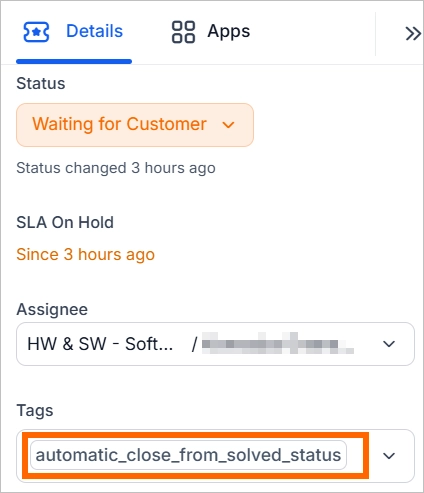
When a ticket has multiple tags or labels of different categories, the respective user groups can also easily collaborate within a shared inbox on the labelled tickets.
Additionally, you can add tags to messages or conversations within a ticket to encourage cross-team collaboration and sharing of ideas, ensuring they resolve issues quickly.
Enhances customer service
Ticket tagging improves customer service by enabling the effective routing of tickets to the right teams or specialists who can handle them as fast as possible.
According to BusinessDasher, 77% of clients believe that fast responses are the best service an organization can offer.
Automated ticket tagging using an email ticketing system makes it easier to triage, prioritize, and manage support issues for faster resolution.
Moreover, ticket tagging helps to reveal trends in customer service, which helps organizations to address persistent issues, and improve the services offered.
Provides quality analytics and reporting
Adding tags enables the classification of tickets based on factors such as type of issue, urgency, and customer segment.
These ticket categories help when compiling and analyzing reports to get valuable insights into agents’ and ticket performances.
Common ticket tagging use cases
Ticket tags help support teams classify, manage, and analyze support requests throughout the ticket lifecycle.
The following are some of the most common ways organizations use ticket tags.
- Categorize incoming requests: Classify tickets based on the customer’s issue, such as billing, login-issue, technical-issue, or feature-request. This helps agents organize similar requests and locate related tickets more easily.
- Route tickets to the right team: Use tags to direct tickets to the appropriate department or specialist. For example, tags such as billing, api-support, or mobile-app can trigger routing rules or help agents assign tickets manually.
- Support SLA and escalation workflows: Apply tags such as low-priority, high-priority, or urgent to identify requests that require different response or resolution targets and ensure they follow the appropriate workflow.
- Organize customer segments: Group tickets by customer type using tags such as vip-customer, trial-user, or returning-customer. This helps agents recognize the customer context when handling requests.
- Track recurring issues and support trends: Group similar tickets using tags such as bug-report, payment-issue, shipping-delay, or feature-request so support managers can review recurring problems and monitor support trends over time.
How to tag tickets effectively
Effective ticket tagging depends on using tags consistently and keeping the tagging process simple for support agents.
The following best practices can help your team organize tickets more accurately and maintain efficient support workflows.
Use clear and consistent tags
Use simple, descriptive tags that accurately reflect the issue, product, or customer type.
Each tag should have a clear purpose and be easy for agents to understand and apply. Simple, descriptive tags help agents categorize tickets quickly and accurately.
As your support team grows, consider establishing organization-wide ticket tagging conventions to maintain consistency across teams and workflows.
Automate ticket tagging where possible
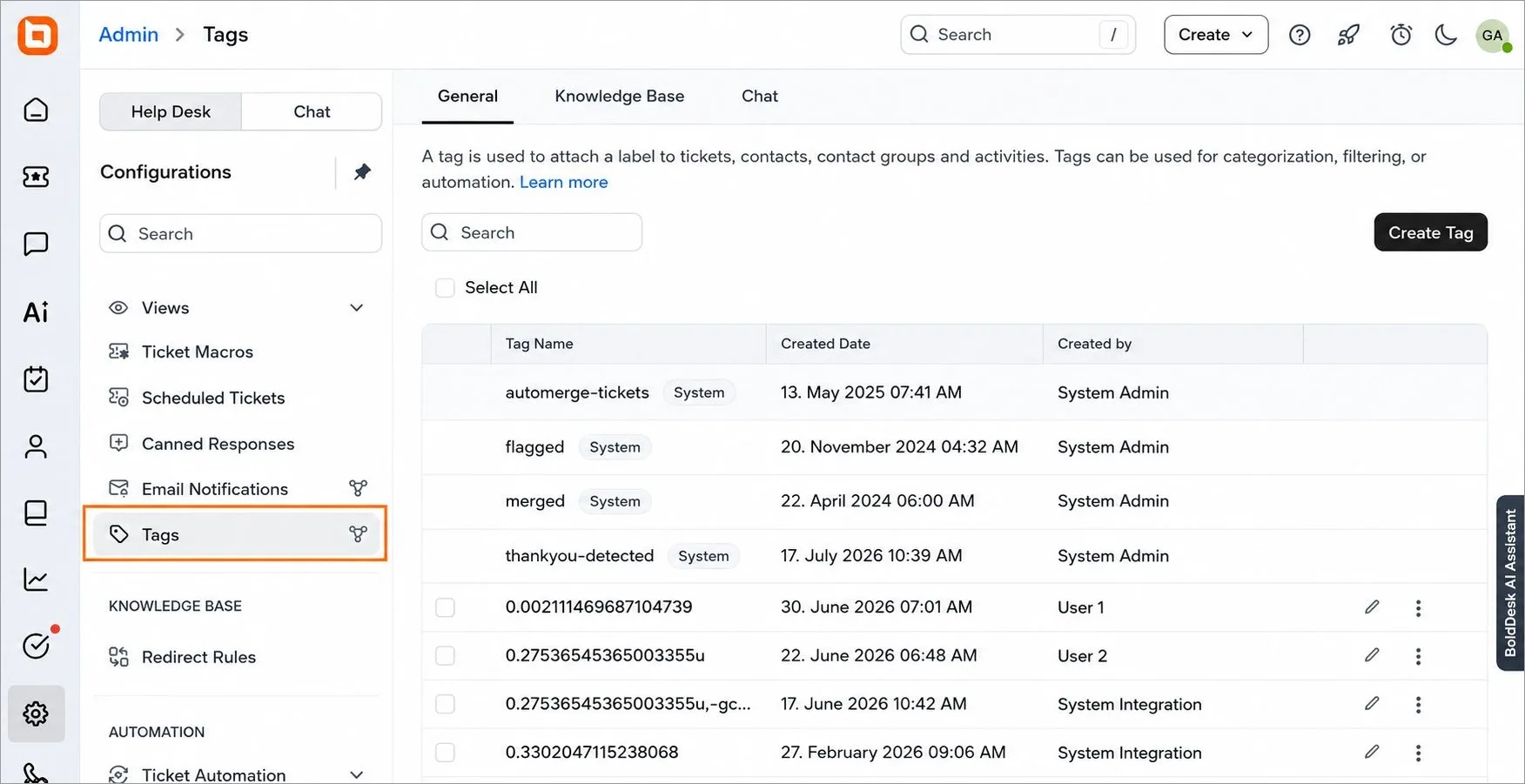
Modern help desk software can automatically apply tags based on keywords, customer information, ticket source, or predefined rules.
Automated tagging reduces manual effort while helping teams categorize, prioritize, and route tickets consistently.
Train your support agents
Ensure support agents understand when to apply each tag and how tags are used within your support workflow.
Regular training helps maintain accurate ticket classification and improve reporting quality.
Don’t over-tag
Avoid assigning unnecessary tags to the same ticket. Using too many tags can make tickets harder to search, filter, and manage.
Start with the tags your team uses most often and introduce new ones only when they address a recurring support need.
Common examples of ticket tags
Ticket tags vary depending on an organization’s products, services, and support workflows.
The following examples illustrate how support teams commonly label customer requests.
| Tag category | Example tags |
| Issue type | technical_issue, login_issue, feature_request, bug_report |
| Billing | billing, invoice, refund_request, payment_failed |
| Priority | low-priority, high-priority, urgent, critical |
| Product | mobile-app, website, customer-portal, API |
| Customer | vip_customer, trial_user, enterprise, returning_customer |
| Status | pending_customer, awaiting_review, escalated |
Simplify support with ticket tagging
Ticket tagging helps support teams organize, filter, and prioritize customer requests more effectively.
By assigning relevant tags to tickets, agents can quickly understand the context of an issue, route requests to the right team, and respond faster.
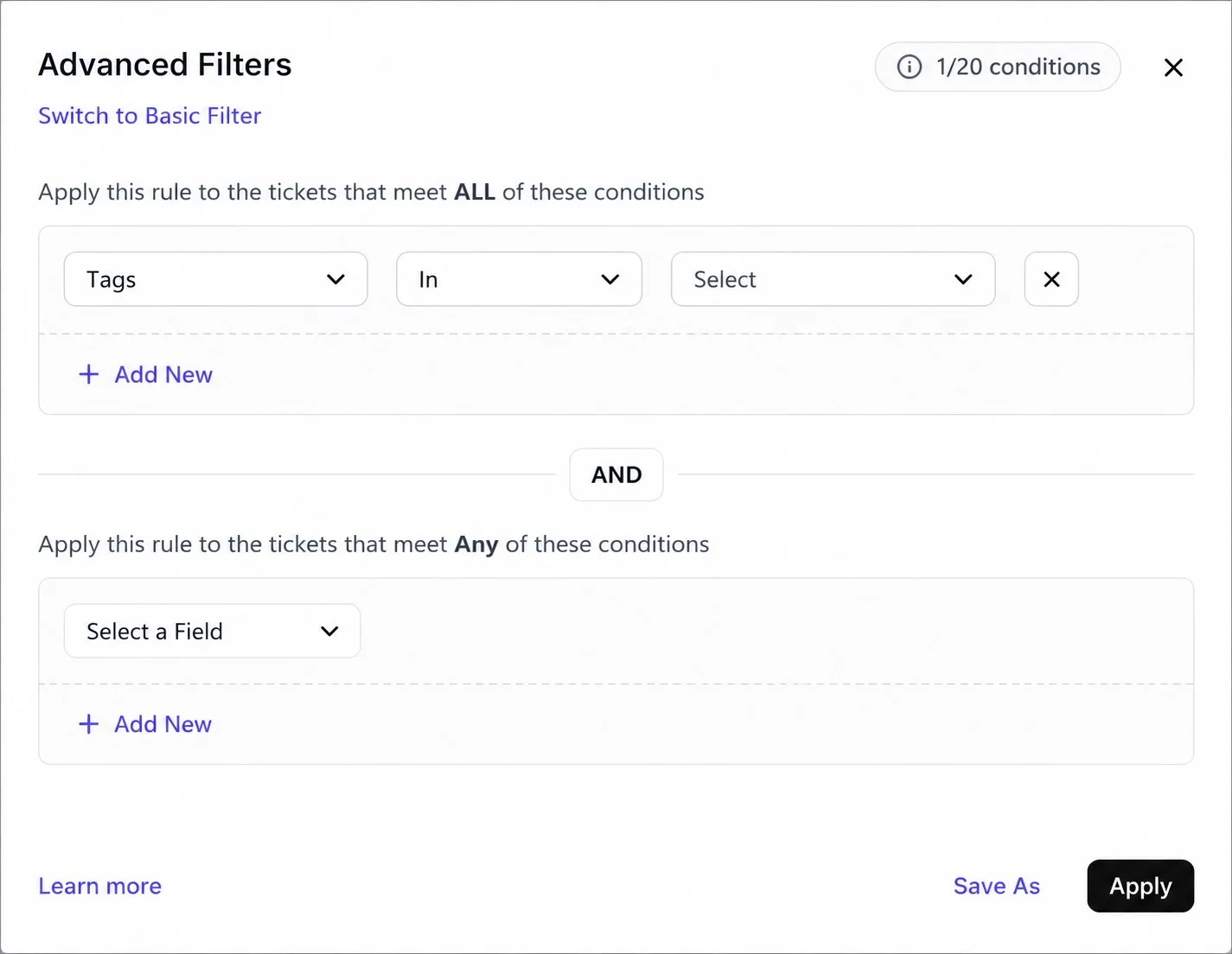
With BoldDesk, you can easily create and manage ticket tags, automate ticket categorization, and use advanced filters to find and track support requests with ease.
Whether you’re handling a small number of tickets or managing a growing support queue, effective tagging helps keep your workflow organized and efficient.
Ready to streamline ticket management? Schedule a 30-minute live demo to see how BoldDesk can help your team improve ticket organization, filtering, and automation.
You can also take up a 15-day free trial to explore the platform firsthand.
Do you have suggestions on how to better implement ticket tagging? Share your thoughts in the comment section below.
Related articles
- The Best Automated Ticketing System for Businesses (2026)
- 10 Help Desk Automation Ideas to Improve Productivity
- Ticket Deflection: A Smart Strategy for Efficient Customer Support
FAQs
What is the difference between manual and automated ticket tagging?
Manual ticket tagging is when support agents add tags to tickets themselves based on the customer’s request.
Automated ticket tagging is when a help desk system automatically adds tags using predefined rules, keywords, or AI.
How many tags should be applied to a ticket?
Most tickets only require a few relevant tags. Adding too many tags can make tickets harder to categorize, search, and analyze effectively.
When should you create a new tag?
Create a new tag when a recurring issue, customer segment, product area, or workflow cannot be accurately categorized using your existing tags.
Before creating a new tag, make sure an existing tag cannot already be used to classify the request accurately.
ABOUT THE AUTHOR

Jennifer Akinyi Odhiambo 
Jennifer Akinyi is passionate about strengthening customer service through clear, practical insights. At Syncfusion, she leverages her technical expertise and a customer-first approach to create content that helps teams deliver exceptional support and solve challenges effectively. Her work focuses on making every interaction informative, engaging, and centered on customer success.
Read more articles by this author Be the first to get updates