



What Is an Out‑of‑Office Message in Modern Support Operations?
-
by Maxwel Odhiambo
- Updated on: September 16, 2026
TL;DR:An effective out-of-office message tells people when you will return, what to do next, and who to contact for urgent help. This guide explains when to use one, how to set it up in five popular email tools, and provides templates for eight common scenarios.
Sometimes you need to step away from work, whether it’s for a vacation, business trip, training, or a personal appointment.
Whether you can check your email or not, an out-of-office message lets people know you’re unavailable and when they can expect a response.
It sets clear expectations, reduces unnecessary follow-ups, and helps maintain a professional customer experience while you’re away.
This guide explains how to write an effective out-of-office message, what to include, how to set it up in five popular email tools, and provides templates for eight common scenarios.
What is an out of office message?
An out-of-office (OOO) message is an automatic reply that lets customers, colleagues, or partners know you’re unavailable and when they can expect a response.
A good out-of-office message sets clear expectations, provides an alternate contact when needed, and reassures the sender that their request has been received. It helps reduce confusion, prevents unnecessary follow-ups, and maintains a professional customer experience.
When should you use an out-of-office message?
Customers value fast responses, especially when they need help. When a support agent is unavailable, an out-of-office (OOO) message helps set the right expectations and maintains a positive customer experience.
You should use an out-of-office message whenever you are unable to respond to customer inquiries within your normal response time. This includes:
- Vacation or personal time off
- Business trips and conferences
- Medical leave or extended absence
- Public holidays and company shutdowns
- Training sessions or offsite events
- Any situation where support responses may be delayed
Up to 90% of customers cite immediate responses as a key metric for their satisfaction.
Just like canned responses and saved email templates, out of office messages are increasingly becoming a necessity.
An out-of-office message offers several benefits for both businesses and customers, including:
- Streamlines communication: It provides information about your absence, when you’ll be back, and an alternate contact person for emergencies. Effective communication reduces the number of unhappy customers due to delayed responses.
- Drives engagement: It is possible to include links to your social media sites, products, updates, and information in your OOO message. This makes it easier for people to reach out to you, which ultimately boosts engagement and drives traffic to your business.
Never Miss a Customer Message While You’re Away Again!
Automate replies, route tickets, and keep support running smoothly even when you’re offline with a modern help desk software.

How to write an out of office message
Drafting an out of office message is simple and quick. These are tips that you should always consider when writing an OOO message:
- Short, clear, and concise messages: To maintain clarity, keep your out-of-office messages brief and direct to the point. They should be between 3 and 6 sentences. It should be something like this:
This is an automatic response to let you know that I’m out of the office until [return date].
Kindly reach out to [contact information and name], who will gladly assist you.
- Professional and unique tone: Showcase your brand personality while being professional in your out of office message. It personalizes the message, making it sound trustworthy. Always start with a warm greeting, thank the sender, and sign off politely. Consider this as a possible example:
I’m out of the office on leave with no access to my emails. Sorry for any inconvenience caused.
As you draft your out-of-office message, consider how it will affect guest experience, especially in hospitality, where timely communication is critical.
Referring to help desk do’s and don’ts for hospitality can help you create responses that are both helpful and service-driven.
What should you include in an out-of-office message?
Writing a standard out-of-office message can be confusing, especially when you don’t know the essential information to include.
Consider the following tips for your out of office email to make it refined and exciting:
- Subject line: Always start the OOO email with an attractive, clear, short, and direct subject line so anyone reaching out knows that you’re out of the office. It can sound like: ‘Out of office on leave,’ ‘Out of office alert!’
- Greetings: Include a brief salutation to set the tone for your OOO message, ensuring it sounds professional and polite. Examples of these greetings include ‘Hello’ and ‘Hi’.
- Provide an alternative communication means: Make sure to include alternate contact options. These could be an email, phone number, and physical address.
- When you’ll be out and back: Include dates for the duration you will be away and back to the office. This is for planning purposes.
- Professional sign-off: End your OOO message professionally by including your name, position held at the company, signature, and any other relevant information that can be included.
- Necessary information: Include a message acknowledging receipt of the message, what recipients should expect, and inform them that it is an automatic reply.
Common mistakes to avoid when writing out-of-office messages
An out‑of‑office (OOO) message may seem simple, but when written poorly, it can create confusion, delay support, or negatively impact the customer experience.
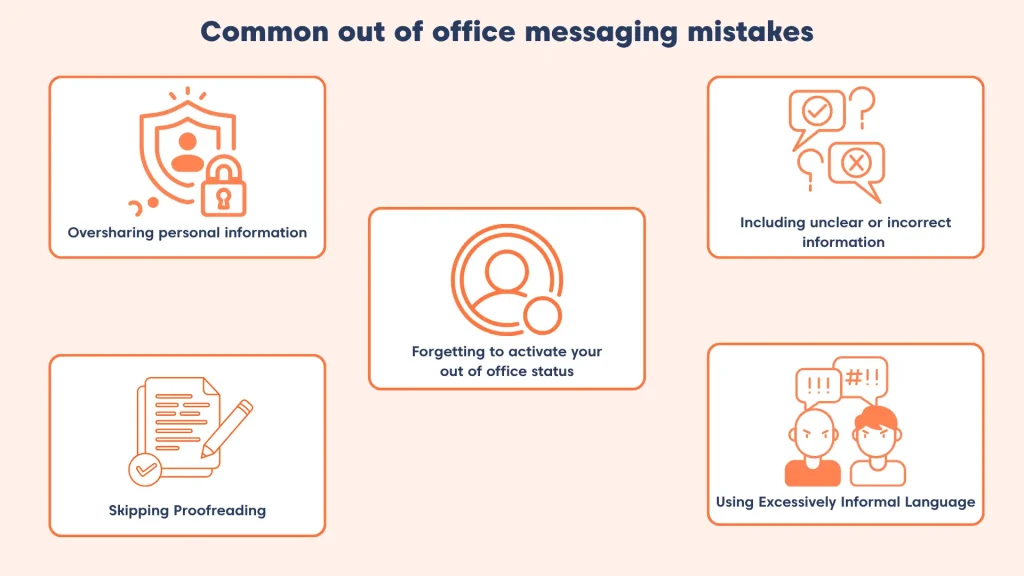
To ensure your OOO message remains clear, professional, and customer‑friendly, avoid the common mistakes outlined below.
Oversharing personal information
While it’s helpful to explain your absence, sharing too much personal detail is unnecessary and unprofessional.
What to do instead:
Keep your message short and neutral. A simple statement such as:
“I’m currently out of the office on a business trip.”
is more than sufficient and keeps the focus on customer support.
Forgetting to activate your out‑of‑office message
Failing to enable your OOO autoresponder can leave customers waiting without any acknowledgment.
What to do instead:
Always activate your out‑of‑office message before stepping away, especially if you handle customer queries or support tickets.
This reassures customers that their message has been received.
Including unclear or incorrect information
Incorrect return dates or outdated contact details can frustrate customers and slow down issue resolution.
What to do instead:
Before activating your OOO message, double‑check:
- Your return date
- Alternate support contact details
- Business hours (if included)
Accuracy helps customers know exactly what to expect.
Skipping proofreading
Spelling mistakes, grammar errors, or unclear sentences can make your message appear rushed or careless.
What to do instead:
Take a moment to proofread your OOO message. A well‑written response reflects professionalism and builds trust with customers.
Using excessively informal language
Overly casual or playful language may give the wrong impression, especially in customer support or service roles.
What to do instead:
Maintain a polite, professional, and friendly tone. Avoid slang or excessive humor unless it aligns clearly with your brand’s support voice.
Catchy subject lines to use in your out of office messages
Easily capture your reader’s attention with a simple and elegant subject line for your autoresponder. Here are some simple subject line examples:
- Out of office alert!
- Thanks for reaching out
- Out of the office temporarily. Back on [Return Date]
- On leave. Thanks for understanding
- Away on a much-needed break
- Sorry for the inconvenience caused
- Currently taking some time off, sorry!
- Out-of-office, but while I have you here…
Common out of office scenarios where support teams fall behind
Out‑of‑office messages help customer support teams set clear expectations when agents are unavailable. They reduce confusion and reassure customers that their message has been received.
Support teams rely on OOO messages during vacations, leave, travel, after‑hours requests, or short absences. While the tone may vary, the goal is the same—keeping customers informed and supported.
Here are the common scenarios where support teams use out‑of‑office messages.
Scenario 1 – Support after work hours
When customers contact support outside normal working hours, OOO messages explain that the team is currently unavailable. They also share when support will be back online and when a response can be expected.
Scenario 2 – Weekend support unavailable
This scenario applies when customers reach out on weekends. OOO messages let them know support responses may be delayed and confirm when weekday support will resume.
Scenario 3 – Support closed for holidays
During public holidays or company‑wide breaks, OOO messages inform customers that the support team is closed. They clearly mention the reopening date or alternate help options if available.
Scenario 4 – Support agent on leave
When a specific support agent is on leave, OOO messages notify customers about the absence. They guide customers to another agent or a shared support channel for help.
Scenario 5 – Agent shifts not active
For teams working in shifts, OOO messages are used when an agent’s shift has ended. They help customers understand that another agent will reply during the next active shift.
Scenario 6 – Live chat temporarily unavailable
When live chat is offline, or agents are busy, away messages inform customers that chat support is unavailable. Customers are guided to submit a ticket or try again later.
Scenario 7 – Urgent issues and emergency support
In urgent situations, OOO messages direct customers to emergencies or priority support channels. This ensures critical issues are handled without delay.
Scenario 8 – Delays due to high support volume
When support teams receive a high number of requests, OOO messages explain response delays. They reassure customers that their request is in the queue and will be answered soon.
Looking for ready-to-use examples? Explore our collection of out‑of‑office message templates for customer support teams.
How to set up out-of-office messages
It may sound like a lot of work, but it’s a relatively simple process that should not take more than three minutes.
Here is how you can easily set up out-of-office messages using your preferred mail service provider:
Set up out‑of‑office messages in BoldDesk
BoldDesk doesn’t use a single “Vacation responder” toggle like Gmail. Instead, out‑of‑office messages are handled through agent availability and automated offline replies, which gives support teams more control over routing and customer expectations.
Option 1: Set an agent status as “Out of Office” (recommended for leave or vacations)
This prevents new tickets from being assigned to the agent while they’re away.
- Go to Admin → Agent Availability Status.
- Select the agent who will be out of office.
- Change the agent’s status to Offline for the duration of the absence.
- Save the changes.
Once set, BoldDesk stops assigning new tickets to that agent, ensuring customers are routed to active team members instead.
Option 2: Send automatic OOO replies using Offline Messages (after hours or unavailable)
Offline messages automatically notify customers when support is unavailable.
- Go to Admin → Chat → Business Hours and set your working hours.
- Navigate to Admin → Chat → Channel Settings (WhatsApp, SMS, or Live Chat).
- Enable Offline Message.
- Enter your out‑of‑office message explaining the delay and next steps.
- Click Save.
Customers who contact support outside business hours will receive the OOO message automatically.
Option 3: Auto‑reply for tickets using automation (advanced)
For email or ticket‑based OOO replies:
- Go to Admin → Automation → Ticket Automation.
- Create a rule triggered on ticket creation.
- Add the Add Reply action with your out‑of‑office message.
- Activate the rule.
This is useful for high‑volume queues or shared inboxes.
Set up out‑of‑office messages in Gmail
Gmail makes this pretty straightforward, but the setting lives in the main Settings menu (not inside a separate “Auto-reply” screen), so it’s easy to miss.
- From your inbox, click the gear icon to open Settings.
- Select See all settings.
- Under the General tab, scroll down until you find Vacation responder.
- Turn it on, paste your out-of-office message, confirm your subject line and start/end dates, then click Save Changes.
If you need a step-by-step walkthrough, refer to Google’s help doc.
Set up out‑of‑office messages in Outlook
Outlook’s layout varies by version (classic Outlook, new Outlook, Mac, web), but the setup usually follows the same pattern: open settings, enable automatic replies, choose a time range, and paste your message.
- Open Outlook and go to File(or Settings, depending on your version).
- Select Automatic Replies(sometimes shown as Out of Office).
- Turn automatic replies on, set your start and end date/time, then paste your message.
- Save/confirm to enable it.
Need the Microsoft-verified walkthrough for your Outlook version? Start here.
Set up out‑of‑office messages in Apple Mail
Apple Mail doesn’t always label this as “out of office” inside the Mail app itself—if you’re using iCloud Mail, you’ll typically set an automatic reply from your iCloud Mail settings.
- Open iCloud Mail settings(often via iCloud on the web).
- Find Auto-reply / automatic response
- Turn it on, set your date range, and paste your out-of-office message.
- Save your changes.
Want Apple’s official iCloud Mail auto-reply instructions? Follow this guide.
Set up out‑of‑office messages in Microsoft Teams
An email auto-reply is helpful—but if your team works in Teams all day, setting your Teams status message can reduce follow-ups and pings while you’re away.
- Open Microsoft Teams.
- Go to your profile and open your status settings.
- Choose Out of office, set the schedule(start/end), and add a short status message (optional but recommended).
- Save to activate it.
For step-by-step instructions, follow Microsoft’s official guide to setting an out-of-office status in Teams.
Always be professional and reliable with an out of office message
Whether you’re away from the office for a short or long period, it is important to remain professional by communicating adequately.
An out-of-office message lets whoever tries to reach out know you are away, so you won’t have to worry.
This avoids hurting your relationship with customers and colleagues by providing information and how to move forward despite being absent.
Clear communication is easier when your help desk can automate replies, route tickets, and track SLAs so customers aren’t left waiting.
Was this blog helpful? Please feel free to share your thoughts on the out of office message templates and examples in the comments section below.
Related articles
- Customer Feedback Loop: Importance and How to Close It
- 7 Best Techniques for Reducing Customer Service Response Time
- 10 Help Desk Automation Ideas to Improve Productivity
Frequently asked questions
Should I include the reason for my absence in an out-of-office message?
Sharing the reason for your absence is optional. In most cases, a simple statement that you’re unavailable is sufficient. Avoid oversharing personal information and focus on providing useful details such as your return date, expected response time, and an alternative contact for urgent requests.
What should I include in an out-of-office message?
A good out-of-office message should include the dates or timeframe of your absence, an expected response time, and an alternative contact for urgent matters. You can also mention whether you have limited access to email. Keep the message clear, concise, and professional to avoid confusion.
Can I use humor in my out-of-office message?
Yes, humor can make your message more engaging if it aligns with your company culture and audience. However, clarity should remain the priority. Make sure recipients can easily understand your availability and expected response times. Also include alternative contact options without letting jokes or informal language distract from the message.
Can an AI agent handle out-of-office replies?
Yes, modern email and help desk systems can use AI agents to automate out-of-office responses. These tools can acknowledge incoming messages and answer common questions. They can also route inquiries to available team members and prioritize urgent requests. This helps maintain customer service continuity while you’re away.
What happens to customer emails when I’m out of the office?
With an email ticketing system, incoming emails are automatically converted into tickets and assigned to the appropriate queue. Support managers can reassign requests to available agents, while automated responses acknowledge receipt. This ensures customer inquiries continue to be tracked and addressed even during your absence.
How long should an out-of-office message be?
An out-of-office message should usually be brief and easy to read, typically between three and six sentences. Include only the essential details, such as your availability, expected return date, response timeframe, and alternative contact information. Avoid lengthy explanations that may distract from the main purpose of the message.
When should I turn on an out-of-office message?
You should enable your out-of-office message before stepping away from work whenever you expect delays in responding to emails or support requests. This includes vacations, business trips, training sessions, medical appointments, public holidays, and even short periods of limited availability during the workday.
Should internal and external out-of-office messages be different?
Yes, internal and external out-of-office messages often serve different purposes. Internal messages can provide more context and detailed instructions for coworkers, while external messages should remain concise and professional. For customers and business contacts, focus on availability, response expectations, and alternative ways to get assistance.
ABOUT THE AUTHOR

Maxwel Odhiambo 
Maxwel Odhiambo is a customer service specialist who enhances client experiences through clear, effective documentation. Combining strong communication skills with a passion for service excellence, he empowers organizations to build trust and improve customer satisfaction.
Read more articles by this author Connect with the author on LinkedIn.
Be the first to get updates