



- Blogs Explore Blogs Blogs
Claude and BoldDesk MCP Server: 7 Use Cases for Support Teams
-
by Maxwel Odhiambo
- Updated on: November 11, 2026
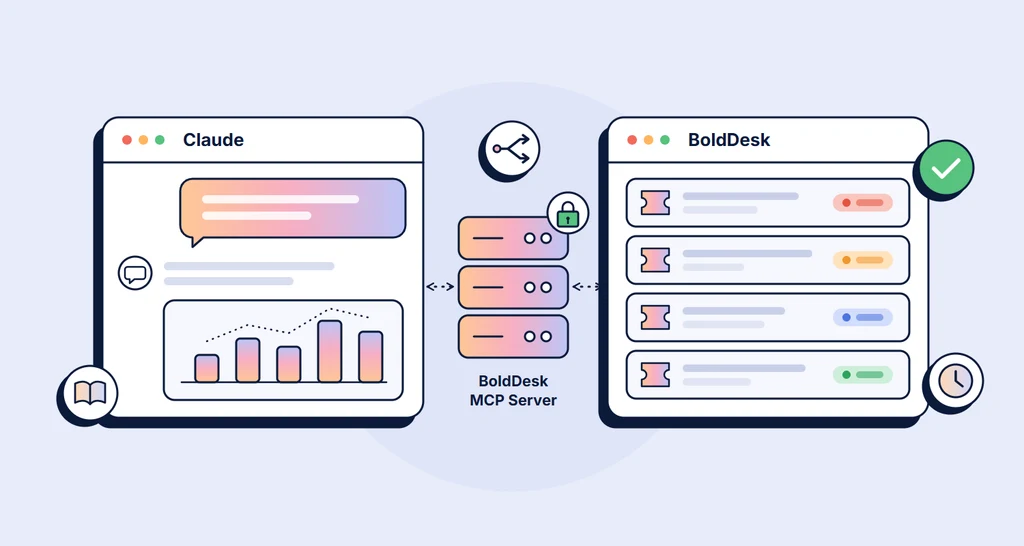
TL;DR: Connect Claude to the BoldDesk MCP Server to manage support work through natural-language conversations. Claude can retrieve ticket data, draft replies, route requests, monitor support performance, create reports, and assist with knowledge management while respecting the connected user’s permissions.
Support teams spend a significant amount of time searching for ticket information, updating records, drafting responses, and coordinating follow-up work.
By connecting Claude to the BoldDesk MCP Server, teams can interact with support data through natural-language conversations.
Instead of manually navigating ticket queues and support records, agents can ask questions, retrieve information, update ticket details, and perform supported workflows from a single interface.
The integration uses Model Context Protocol (MCP), a standard that allows AI assistants to securely connect with external tools and business systems like BoldDesk.
This guide explains how to connect Claude to the BoldDesk MCP Server and walks through seven practical use cases, each with a sample prompt you can try.
Why you should connect Claude to BoldDesk MCP Server
BoldDesk’s MCP Server acts as a secure bridge between Claude and your BoldDesk account. Once connected, Claude can interact with a wide range of support resources and workflows from a single interface.
Three aspects make the integration practical:
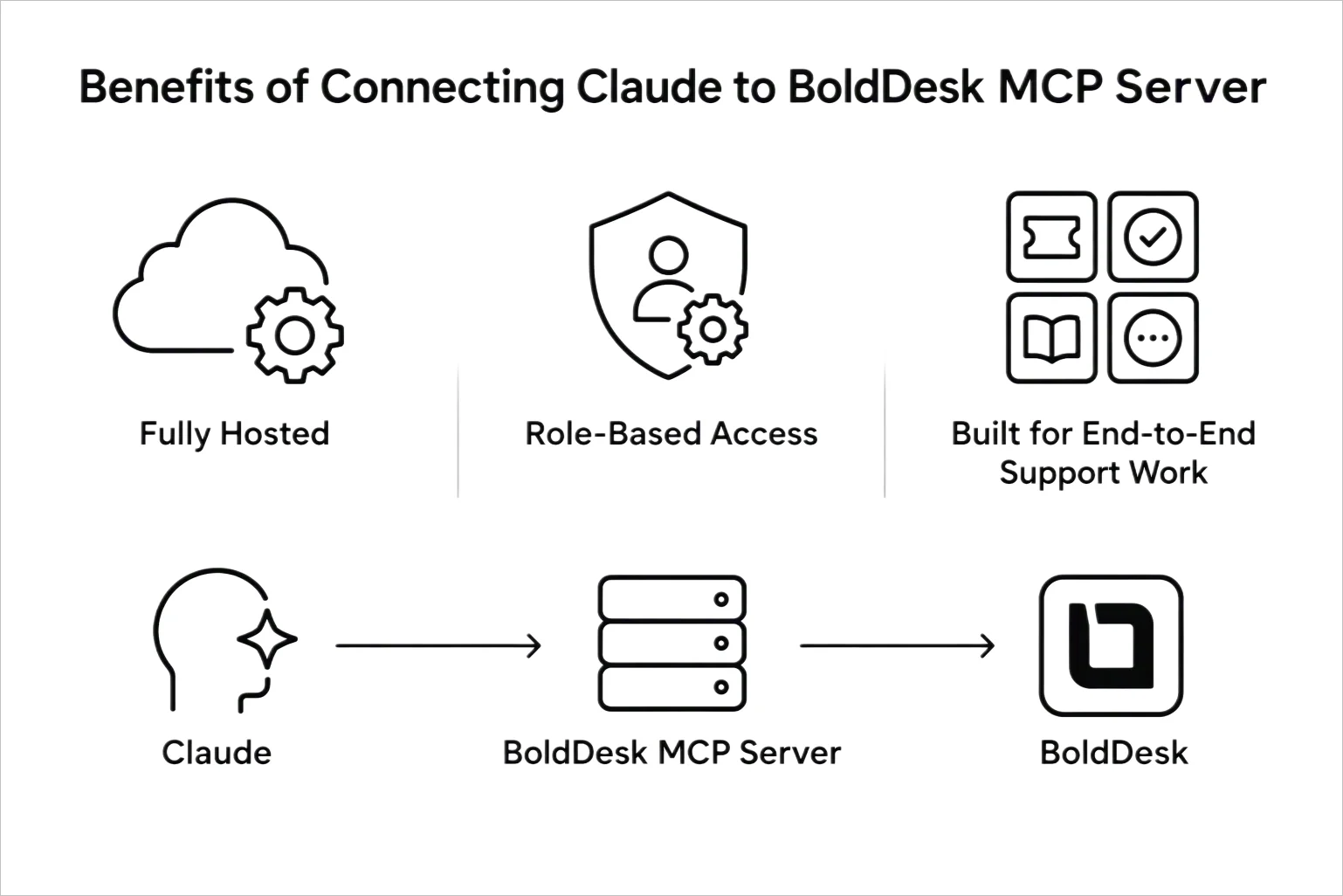
- Fully hosted: The MCP Server is managed by BoldDesk, so there is nothing to install or maintain. Teams can connect Claude directly to their BoldDesk account through a dedicated MCP endpoint and start using the integration without setting up additional infrastructure.
- Role-based access: Claude works within the connected user’s permissions, so it can only view and act on information that user already has access to in BoldDesk.
- Built for end-to-end support work: The BoldDesk MCP Server connects Claude to the resources teams use every day, from tickets to approvals and knowledge base content.
This integration turns natural-language prompts into structured actions within BoldDesk, enabling AI-assisted support operations while maintaining existing access controls.
How to connect Claude to BoldDesk MCP
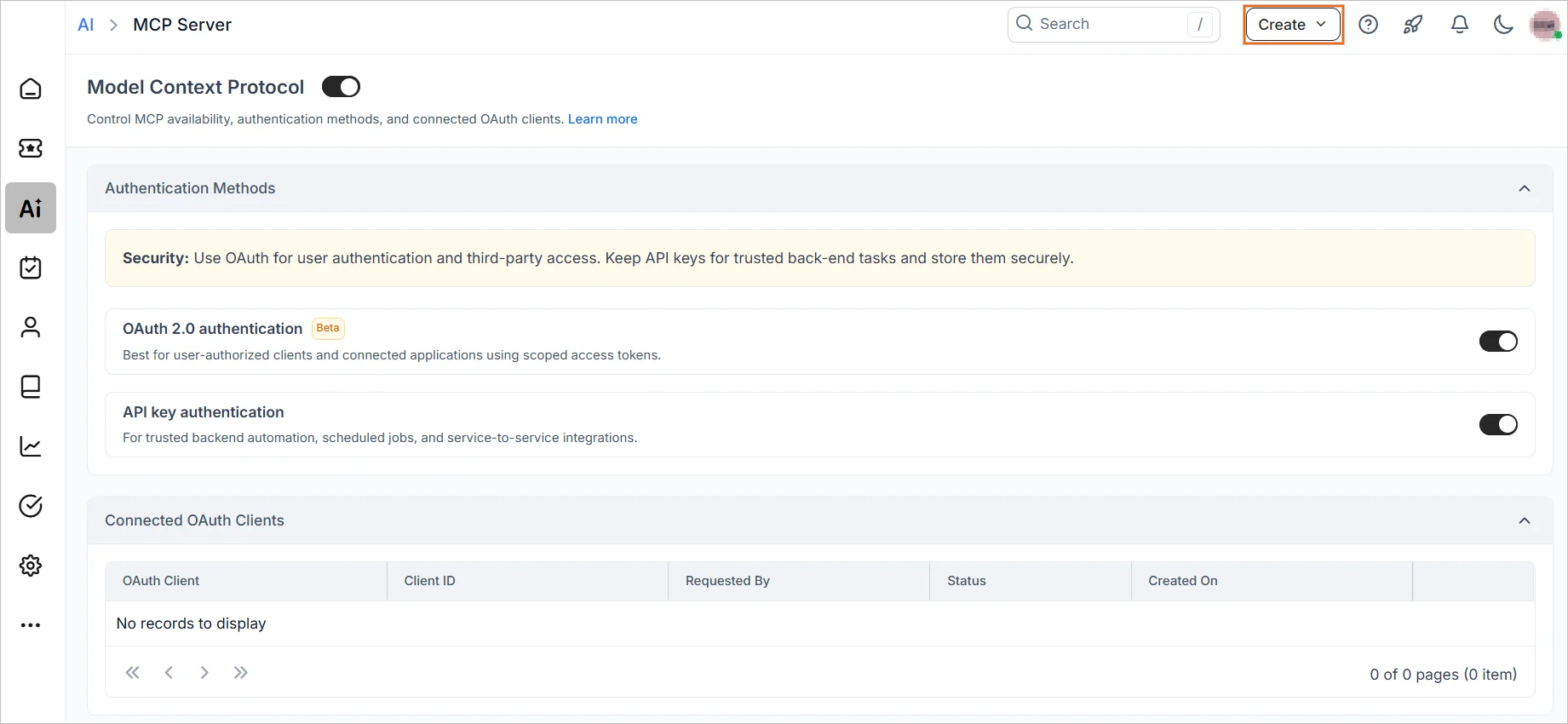
Before exploring the use cases, connect Claude to your BoldDesk account. You’ll need your BoldDesk MCP endpoint URL, and OAuth must be enabled for your MCP Server in BoldDesk.
Then follow these steps:
- Open Claude and navigate to Customize > Connectors.
- Click Add connector, then select Add custom connector.
- Enter a connector name such as BoldDesk MCP.
- Enter your MCP endpoint URL in the following format:
https://<your-subdomain>.bolddesk.com/mcp. Replace<your-subdomain>with your BoldDesk account subdomain. - Click Add, then sign in to your BoldDesk account and complete the OAuth authorization process.
Note: Claude’s UI labels can vary by plan or platform. If you don’t see Customize or Add connector, look for the closest equivalent under Settings, Connectors, or a + button on the Connectors page.
For detailed setup instructions, read the BoldDesk MCP Server Integration Guide for AI Clients & Agents documentation.
7 Practical use cases for the Claude and BoldDesk MCP Server
Support teams use Claude and the BoldDesk MCP Server in different ways depending on their workflows, priorities, and operational challenges.
Each use case below explains the problem it solves, what Claude does through the BoldDesk MCP Server, and a sample prompt to try.
To see related AI workflows on video, browse the BoldDesk AI use case demo library.
1. Weekly support summaries and trend reports
Friday reporting usually starts with someone digging through ticket queues looking for patterns. With Claude connected to BoldDesk through MCP, a manager can ask Claude for a weekly summary instead.
Claude reviews ticket activity, groups issues by category, flags recurring problems, and highlights unresolved cases.
Example prompt: “Summarize this week’s tickets by category, list recurring issues, and show which high-priority tickets are still unresolved.”
Instead of exporting data into spreadsheets, teams get a narrative report built from their BoldDesk records, ready to share in weekly customer service reports.
You can watch this workflow in the Get Weekly Support Summaries via Claude demo in the AI use case library.
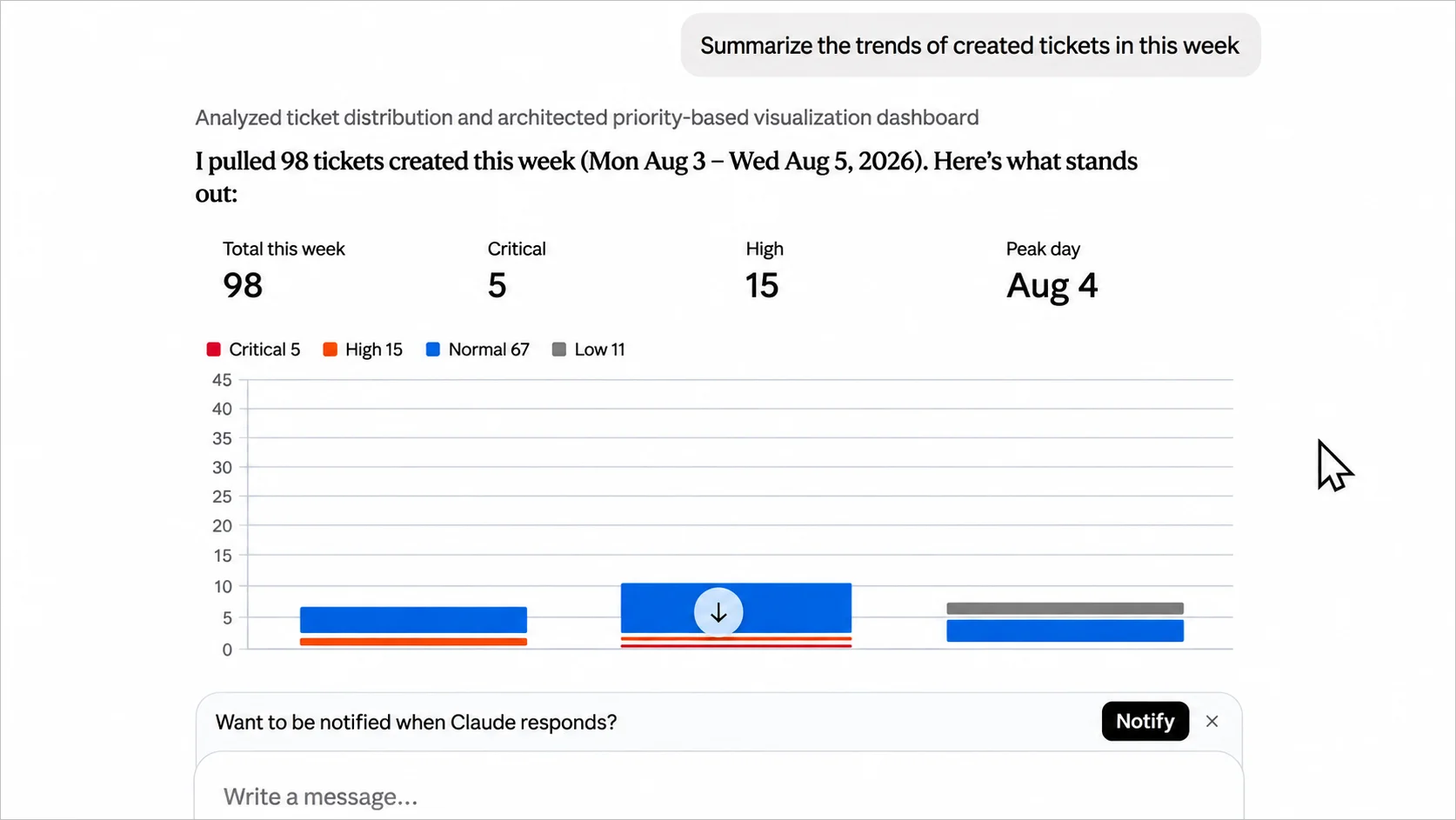
Week-to-date example: This sample summary covers tickets created from Monday through Wednesday and is shown for demonstration purposes only.
2. Conversational ticket triage and routing
As ticket volume increases, keeping ownership and priorities organized becomes a challenge.
Through the BoldDesk MCP connection, Claude can read new tickets, look up the right agent or group, and update fields such as priority, category, assignee, and group before the queue grows.
A billing request can move to the billing team, while a product issue reaches technical support. Teams spend less time sorting tickets and more time resolving them.
To set the rules Claude should follow, start with our ticket triage guide.
Example prompt: “Review today’s unassigned tickets, set priority based on urgency, and assign billing questions to the Billing group.”
If you want triage to run on every incoming ticket without a prompt, BoldDesk’s AI Support Agent can analyze, categorize, and prioritize tickets automatically.
3. Drafting replies and internal notes with full context
Nobody enjoys opening a ticket with 40 messages and no clear summary. Because Claude can read ticket conversations through BoldDesk MCP, it can quickly piece together the history of a case.
Agents can ask for a response draft, a troubleshooting summary, or an internal note, and Claude can post it to the ticket as a public reply, public note, or internal note. The next person who opens the ticket sees where things stand without reading every message.
Example prompt: “Read ticket #4521, summarize what has been tried so far, and add it as an internal note.”
For agents working inside the ticket view, BoldDesk’s Assist Agent also provides one-click ticket summaries and AI reply suggestions.
4. SLA and performance monitoring
Most teams do not miss SLAs because of one major mistake. Small delays accumulate, priorities shift, and critical tickets fall behind without anyone noticing.
A team lead can ask Claude which high-priority tickets are approaching response or resolution deadlines.
The BoldDesk MCP Server gives Claude each ticket’s response and resolution insights, along with its status and activity history, so Claude can show which tickets need attention first. That visibility helps teams act before a missed commitment turns into a customer complaint.
Example prompt: “Which high-priority tickets assigned to my team are close to missing their response or resolution targets?”
5. Knowledge base gap-filling
Support teams often solve the same issue repeatedly before realizing customers cannot find an answer themselves.
Claude can compare recurring ticket themes against existing knowledge base content in BoldDesk. The MCP Server lets Claude search articles and browse categories and sections, so it can check whether an answer already exists before suggesting a new one.
Missing topics become easy to spot, and Claude can draft new articles from proven resolutions for your team to copy into the BoldDesk knowledge base. Each article reduces the chance of the same question creating another ticket later.
Example prompt: “Find the five most common issues in last month’s resolved tickets that have no matching knowledge base article, and draft an article for each.”
To check whether the new articles reduce ticket volume, track the knowledge base metrics that matter most for self-service.
6. Approval-driven escalations
Some requests require approval no matter how obvious the answer seems. Refund exceptions, policy overrides, and special accommodations all fall into that category.
Through BoldDesk MCP, Claude can create approval requests directly from the support ticket context.
Example prompt: “Create an approval request on ticket #3187 for a refund exception, and summarize the reason from the ticket conversation.”
BoldDesk approvals can require everyone, anyone, or a majority of approvers to agree, so each request follows the rule your team already uses. Stakeholders get the context they need, and the decision stays with people. For more on structuring these paths, read our escalation management tips.
7. Follow-up activities and time logging
Closing a ticket does not always mean the work is finished. Teams often need to schedule follow-up calls, track action items, or record support hours for billing purposes.
With the BoldDesk MCP connection, Claude can help manage those activities without leaving the conversation.
Example prompt: “Schedule a follow-up call with the requester on ticket #3310 for Thursday, then log 45 minutes of billable time against the ticket.”
This is especially useful for managed service providers (MSPs) and professional services teams that need accurate records of customer interactions and billable support time.
Best practices for using Claude with BoldDesk MCP integration
Connecting Claude to BoldDesk MCP is straightforward, but getting reliable results requires a few practical safeguards.
Before expanding into more advanced workflows, set clear guardrails for how teams use and manage the connection.
Start with read-only workflows
Resist the urge to automate actions immediately. Begin with ticket lookups, conversation summaries, reporting, and trend analysis.
These workflows help teams validate outputs without affecting customer records. Once the team trusts the results, add ticket updates, approvals, and other actions one at a time.
Keep people involved in customer-facing actions
Customer communication often involves details that are not captured in a ticket. Before sending replies or updating ticket status, have an agent review the proposed action.
Human oversight is particularly important for escalations, refunds, and policy exceptions.
You can also use BoldDesk’s API tools and MCP features to route sensitive AI actions for human approval while routine work runs automatically.
Choose the right account for the connection
Claude only inherits the permissions of the connected BoldDesk account. An administrator account may expose more data than necessary.
Consider using a dedicated account with limited permissions to reduce risk while retaining the access needed for support workflows.
Understand how replies are published
Customer-facing messages should always be sent from the correct sender. Claude posts replies as the BoldDesk user connected to it, so check how replies created through MCP appear to customers before using reply workflows.
If the MCP Server is also connected to a BoldDesk AI Agent, direct public messages sent through MCP will appear under the requester’s name. If you want the reply to appear from an agent, use the Ticket Response Agent instead.
This helps prevent customer confusion and ensures consistent communication across your support team.
Test before scaling usage
A workflow that performs well in testing may behave differently with real ticket volumes. Start with a small group of users and validate common prompts, edge cases, and approval paths.
Early testing helps uncover issues before they affect live support operations.
Start using Claude with BoldDesk MCP
The value of connecting Claude to BoldDesk MCP is not tied to a single workflow. The same connection can support reporting one moment, ticket routing the next, and approval management when needed.
That flexibility allows teams to extend AI into existing processes instead of building new ones around it.
Start your 15-day BoldDesk free trial, connect Claude through the BoldDesk MCP Server, and try the sample prompts in this guide on your own tickets.
Related articles
- 10 Reasons You Need an SLA in Customer Service
- Customer Support Operations: Definition, Key Roles, and Metrics
- Customer Service Analytics: A Complete Guide for 2026
Frequently Asked Questions
Which AI clients can connect to the BoldDesk MCP Server?
The BoldDesk MCP Server supports Claude, Claude Code, ChatGPT, GitHub Copilot, and other MCP-compatible clients. It can also work with clients that support remote HTTP connections and custom headers.
What actions can Claude perform in BoldDesk through MCP?
Claude can retrieve ticket data, update ticket properties and statuses, add replies or notes, route tickets, and create approval requests. Available actions depend on the connected user’s permissions.
Who benefits most from Claude and BoldDesk MCP?
Claude and BoldDesk MCP work best for support teams handling high ticket volumes, repetitive requests, or complex workflows. The integration is particularly useful when teams want to automate ticket handling and access support information through AI-driven conversations.
Can Claude automate support workflows without human approval?
It can, but not every action should run unattended. Claude can perform any supported action the connected user is allowed to, and BoldDesk recommends human review for high-impact actions such as replies, status changes, ticket closures, and approval requests.
ABOUT THE AUTHOR

Maxwel Odhiambo 
Maxwel Odhiambo is a customer service specialist who enhances client experiences through clear, effective documentation. Combining strong communication skills with a passion for service excellence, he empowers organizations to build trust and improve customer satisfaction.
Read more articles by this author Connect with the author on LinkedIn.
Be the first to get updates