 In this page

Mobile app
Contact & Contact groups
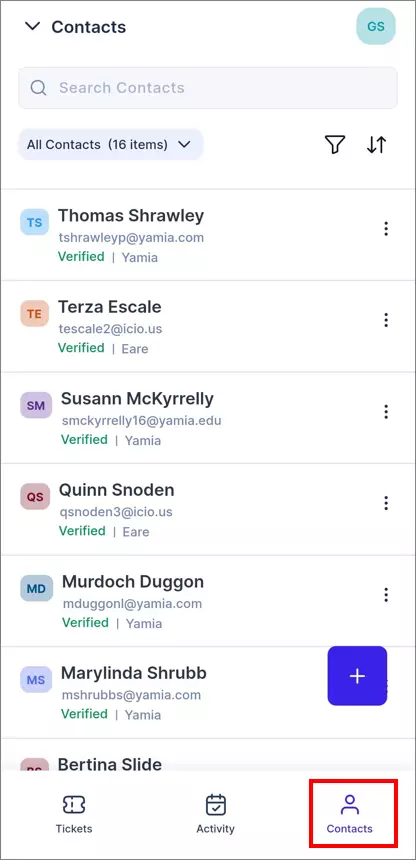
The Contact & Contact Groups module, which was previously exclusive to the web version of the agent portal, has now been integrated into the mobile app. Users can now create, edit, search, and filter contacts directly from their mobile devices.
Add / remove watcher in ticket and activity
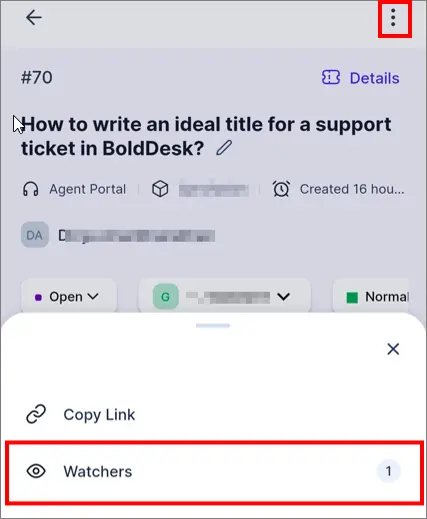
Introducing the Watcher Feature in our mobile app! Enhance collaboration by effortlessly adding or removing watchers to tickets and their activities, ensuring crucial team members stay informed. Keep a close eye on important tickets and activities by managing your list of watchers.
Forward tickets
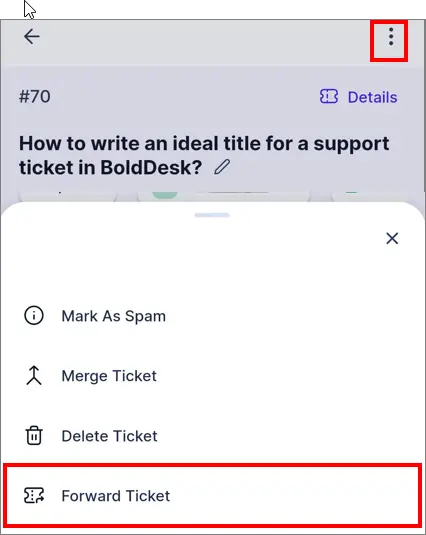
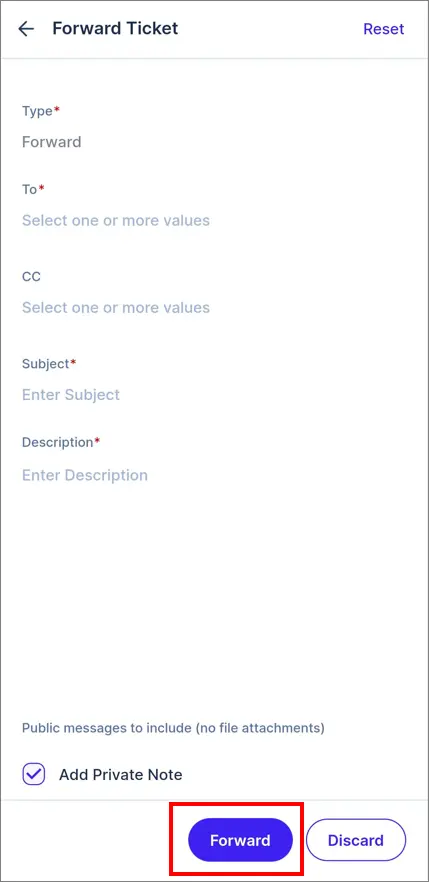
We’ve introduced the Forward Ticket feature in the mobile app. Effortlessly share information with your team, customers, or third-party vendors. Utilize this convenient ticket forwarding functionality within the app to ensure everyone stays informed and on the same page.
Effortless Ticket Connectivity: Introducing Create New Ticket and Link Feature
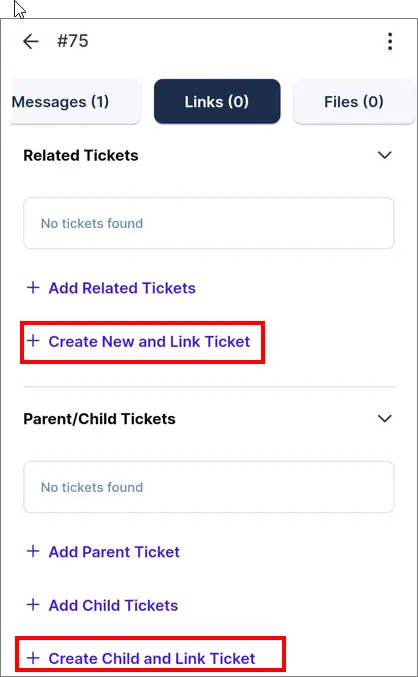
Normally, a ticket can be linked with another tickets using the link option on the ticket details page. Now, we can create a new ticket and directly link with an existing one as either a child or parent from the mobile app. This Create New Ticket and Link feature allows you to manage tickets and related issues more efficiently.
Merge ticket
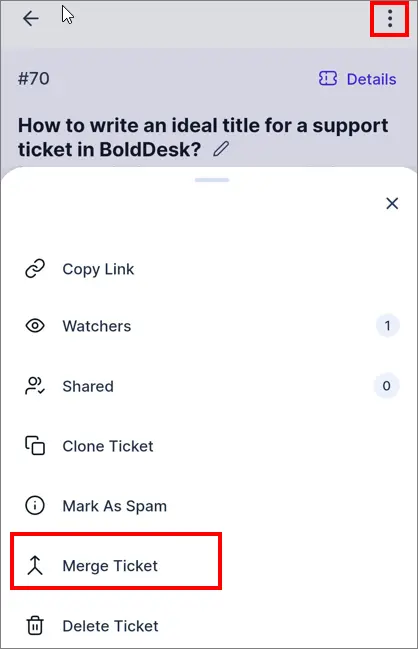
We’ve introduced the ‘Merge Ticket’ feature in the mobile app. Users can now merge one or more tickets into another ticket directly from their mobile devices. This functionality proves invaluable when dealing with multiple tickets addressing the same issue. Stay organized and streamline your ticket management process with the enhanced Merge Ticket feature on the mobile app.