
Help Desk Automation
Automation rules assist in creating customized workflows to perform recurrent manual tasks at each stage of the ticket life cycle, reducing manual effort and increasing agent productivity.
-
No credit card required
-
Cancel anytime
-
No credit card required
-
Cancel anytime
Automation Rules
Automation rules allow you to set up a workflow that executes actions when certain conditions are satisfied. Ticket, requester, and contact group properties are available in the workflow. The supported actions are:
Update Ticket Properties
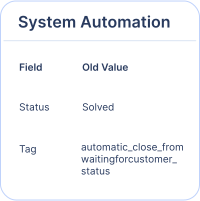
Updates ticket attributes such as status, priority, and custom fields, among others.
Add Private Note
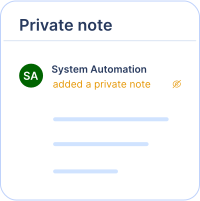
Adds notes to tickets to remind an agent or to track events.
Send Notification
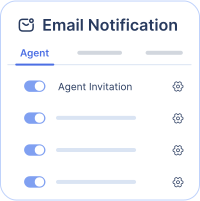
Sends a custom email to the ticket requester or the assigned agent or group.
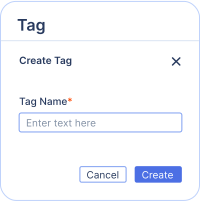
Add Tags
Adds or removes ticket tags, which are used to segmentize tickets.
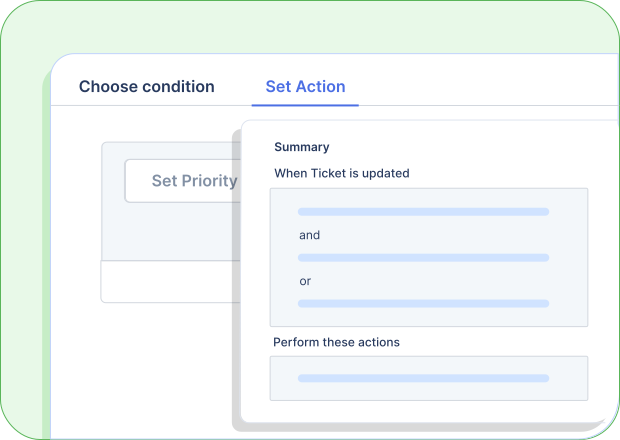
Auto-assignment rule
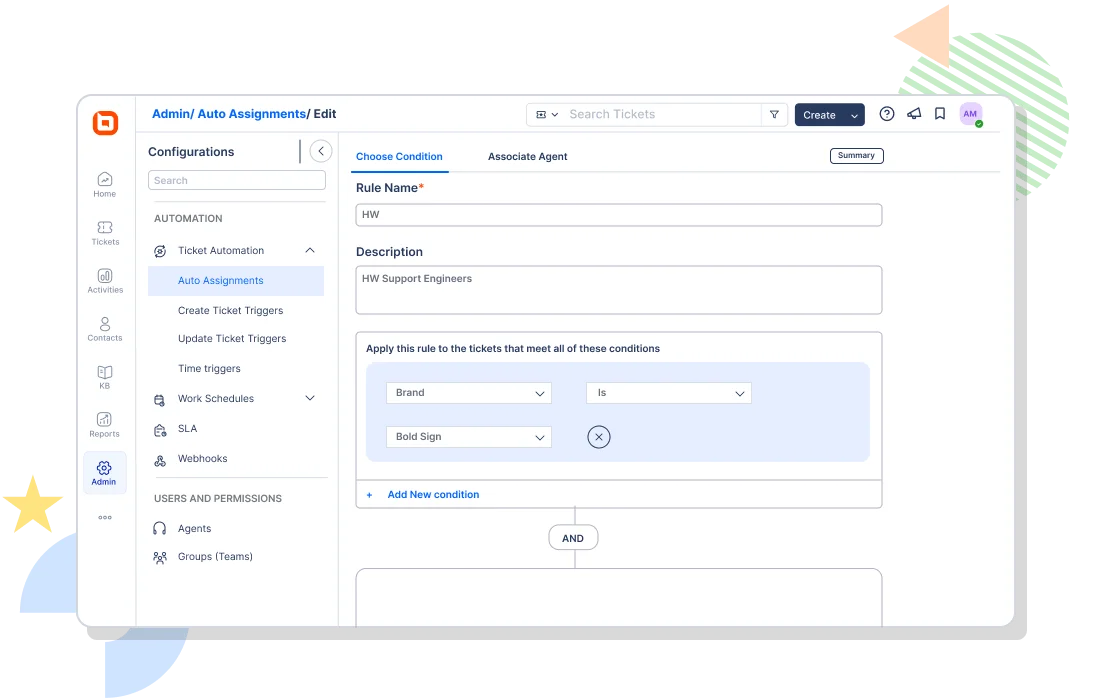
The auto-assignment rule watches incoming tickets and assigns them to a particular agent or group within your company based on the first matched rule.
Pick the right team automatically
A ticket is assigned to the correct team based on the condition configured in the rule, avoiding unnecessary redirecting between teams.
Evenly distribute tickets
Tickets are evenly distributed to available agents by round-robin logic.
Improve first-response time
Tickets will not remain unassigned for long thanks to automatic assignments..
Event-Trigger Automation Rule
Event-trigger automation performs certain actions when a specified event occurs.
-
Rules are triggered by events such as ticket creation, adding a reply via ticket macros, adding a note, updating a property, or receiving customer feedback.
-
When the requester and agent reply count exceeds more than n number, the priority will be changed to high.
-
Send notifications to managers when receiving negative feedback.
-
Easily auto-merge duplicate tickets from the same customer within a particular period of time.
Time Trigger Automation Rule
Time triggers enable automated rules to perform repeated sets of actions based on selected criteria for every hour. These triggers perform cleanup and maintenance tasks by doing the following:
Notifying a group if the ticket is not assigned to an agent for n number of hours.
Auto-solving the ticket if it waits on customer status for more than n number of hours.
Automating the follow-up to save an agent’s time.
Auto-solving the ticket if it waits on customer status for more than n number of hours.
Auto-closing the ticket if it is in a solved state for more than n number of hours.
Chat Workflow Automation
Draft Version Support in Workflows
Make changes to active workflows without deactivating them. Edit confidently and publish updates only when ready no disruption to live workflows.
Workflow Execution Logs
Track how workflows run in real time with execution logs. Easily monitor, troubleshoot, and validate performance for smoother operations.
Reusable Auto-Assignment Settings
Reuse auto-assignment rules across workflows to save time and maintain consistency. No need to recreate the same logic repeatedly.
Workflow Execution Logs
Track how workflows run in real time with execution logs. Easily monitor, troubleshoot, and validate performance for smoother operations.
Business Hours Conditions
Add business hours-based conditions to workflows for smarter automation. Trigger different workflows or paths depending on availability, ensuring timely and relevant responses.
Work Schedule
A work schedule defines business hours and holidays for your support team.
Set a Reasonable Deadline
The service level agreement (SLA) sets realistic response and resolution due dates based on business hours.
Create Multiple Business Hours
Your support team is responsible for several customers in various time zones. BoldDesk allows you to create multiple business hours and holiday lists to fit your team's needs.
Define a Rule Based On Business Hours
You can set up notifications for customers when they create or respond to tickets during holidays using automation rules, and you can set those rules to execute during business hours, non-business hours, or holidays.
Set a Reasonable Deadline
The service level agreement (SLA) sets realistic response and resolution due dates based on business hours.
Create Multiple Business Hours
Your support team is responsible for several customers in various time zones. BoldDesk allows you to create multiple business hours and holiday lists to fit your team's needs.
Define a Rule Based On Business Hours
You can set up notifications for customers when they create or respond to tickets during holidays using automation rules, and you can set those rules to execute during business hours, non-business hours, or holidays.
Service level agreement (SLA)
A service level agreement, or SLA, helps to automatically set the response and resolution times that your support team should provide for a ticket. Set different work hours and holidays for a support team distributed across different time zones in accordance with the business hours used in the SLA.
SLA performance metrics
SLAs enforce three metrics on the ticket to meet the service commitment given to customers: First response time Next response time Resolution time
Reminder
To speed up the process, a reminder email will be sent to the agent before the response/resolution date.
Escalation
The SLA will be breached if the agent fails to react to the ticket within the SLA’s response/resolution date, and an escalation email will be sent.
Automation Benefits
Automation rules affect support response and resolution times as follows:
Improving agent productivity
Eliminating manual effort at every level of the ticket life cycle, allowing agents to focus on resolving customer issues instead.
Reminding agents to act promptly
Sending reminders to agents to prevent tickets from remaining unassigned or unaddressed for a long time.
Avoiding human error
Improving the support process by reducing human involvement and therefore human error.
Reminding agents to act promptly
Sending reminders to agents to prevent tickets from remaining unassigned or unaddressed for a long time.

Prioritizing support tickets
Monitoring tickets to know when to move them to the top of the agent queue when the agent or requester response surpasses a certain number, receives negative feedback, etc.
Test out all the features of BoldDesk
Start your 15-day free trial with instant access
-
No credit card required
-
Easy setup
-
80% AI Agent Automation
-
100+ Rich Features
-
No credit card required
-
Easy setup
-
80% AI Agent Automation
-
100+ Rich Features